
Managing orders
Order lifecycle
Section titled “Order lifecycle”Orders go through a number of stages:
- DRAFT/UNPAID: The order is created, but the customer has not paid for it.
- NEW: The customer has paid for the order.
- PROCESSING: The order is in a batch for processing.
- COMPLETED: The order has been packaged and dispatched/delivered. Customer receives receipt.
- PICKED: Delivery rider has picked the order and it is out for delivery.
- DELIVERED: Shop or delivery rider has confirmed delivery of the order.
- CANCELED: The order has been canceled.
When a customer uses your website or mobile apps to create an order, the order is initially in the DRAFT state prior to payment.
Customer has 3 hours to pay for the order. If payment is not made within this time, the order is automatically canceled.
DRAFT orders do not appear in the Nuanom app.
UNPAID
Section titled “UNPAID”When you manually create an order, the order is initially in the UNPAID state.
UNPAID orders appear in the Nuanom app under Orders > POS.
Customer has 3 hours to pay for the order. If payment is not made within this time, the order is automatically canceled.
When customer pays for an order, the order is marked as NEW. The customer receives an SMS/email confirmation with a link to the order.
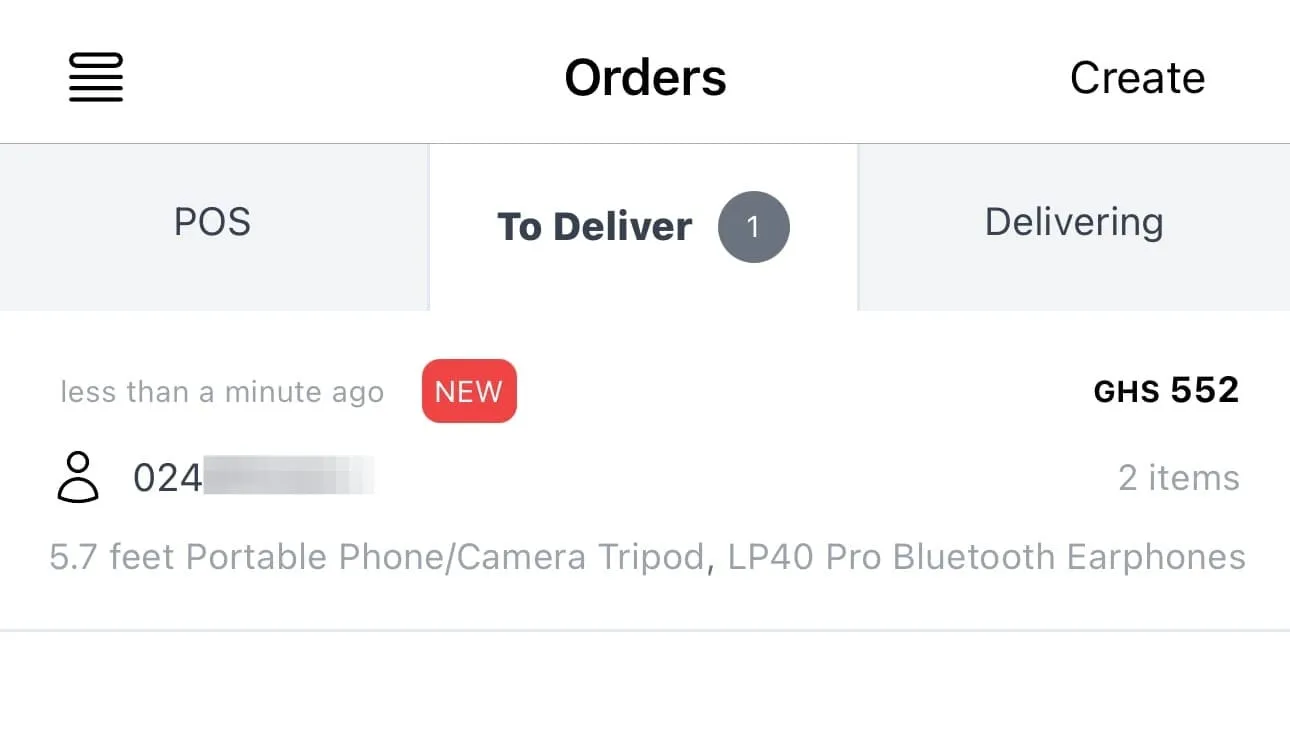
NEW orders appear in the Nuanom app under Orders > To Deliver.
Customers can cancel NEW orders at any time.
PROCESSING
Section titled “PROCESSING”To make it easier to process orders, you can create batches. A batch is a group of orders that you can process at the same time. You can create a batch of up to 100 orders.
When you create a batch all orders in the batch are marked as PROCESSING. Packing slips are generated for all orders in the batch.
Customers cannot cancel PROCESSING orders, but you can cancel them by searching for the order using the customer’s mobile number or email.
Orders in batches or PROCESSING do not appear under Orders > To Deliver.
COMPLETED
Section titled “COMPLETED”Mark order as COMPLETED when it has been packaged and dispatched/delivered. You can complete orders individually or in batches.
Customers receive a receipt via SMS/email when an order is COMPLETED.
DELIVERED
Section titled “DELIVERED”An order is marked as DELIVERED when the shop has confirmed delivery to the customer.
Customers receive a receipt via SMS/email when an order is DELIVERED.
CANCELED
Section titled “CANCELED”Customers can cancel NEW orders at any time.
UNPAID or DRAFT orders are automatically canceled after 3 hours without payment.
Batches
Section titled “Batches”Batches let you process up to 100 orders at the same time. They make it easy to delegate packaging and dispatching, and to generate delivery labels and packing slips in bulk.
Creating a batch
Section titled “Creating a batch”To create a batch, go to Orders > Batches > Create Batch.
A batch of up to 100 orders will be created and packing slips will be generated for all orders in the batch.
These orders will be marked as PROCESSING and will be hidden from the Orders > To Deliver view. The only way to see these orders is to view packing slips or search for orders individually.
You can cancel an order in a batch by searching for the order using the customer’s mobile number or email. When you cancel an order in a batch, the packing slips are regenerated to reflect the change.
Delivery labels and packing slips
Section titled “Delivery labels and packing slips”PDF assets are generated for each batch:
- Delivery labels without products (4in x 6in)
- Delivery labels with products (4in x 6in)
- Packing slips (A4)
- Product quantities (A4)
You can view/download assets from the Orders > Batches page.
Delivery labels are designed for compatible thermal shipping label printers. Nuanom sells high quality delivery label printers and stickers which can be purchased from shop.nuanom.shop. There is also an external link in the Nuanom app on the Business tab to the shop.
Complete orders in batches
Section titled “Complete orders in batches”When you are done packaging and dispatching all orders in a batch, you should complete the batch so that customers receive their receipts via SMS/email.
All orders in a batch are marked as COMPLETED when the batch is completed.
Canceling all items in a batch
Section titled “Canceling all items in a batch”You cannot cancel all items in a batch. You can only cancel orders in a batch individually.
However, you can remove all items from a batch.
Removing all items from a batch
Section titled “Removing all items from a batch”You can remove all items in a batch and the items will be returned to the Orders > To Deliver view.
All orders in a batch are marked as NEW when the batch is removed.